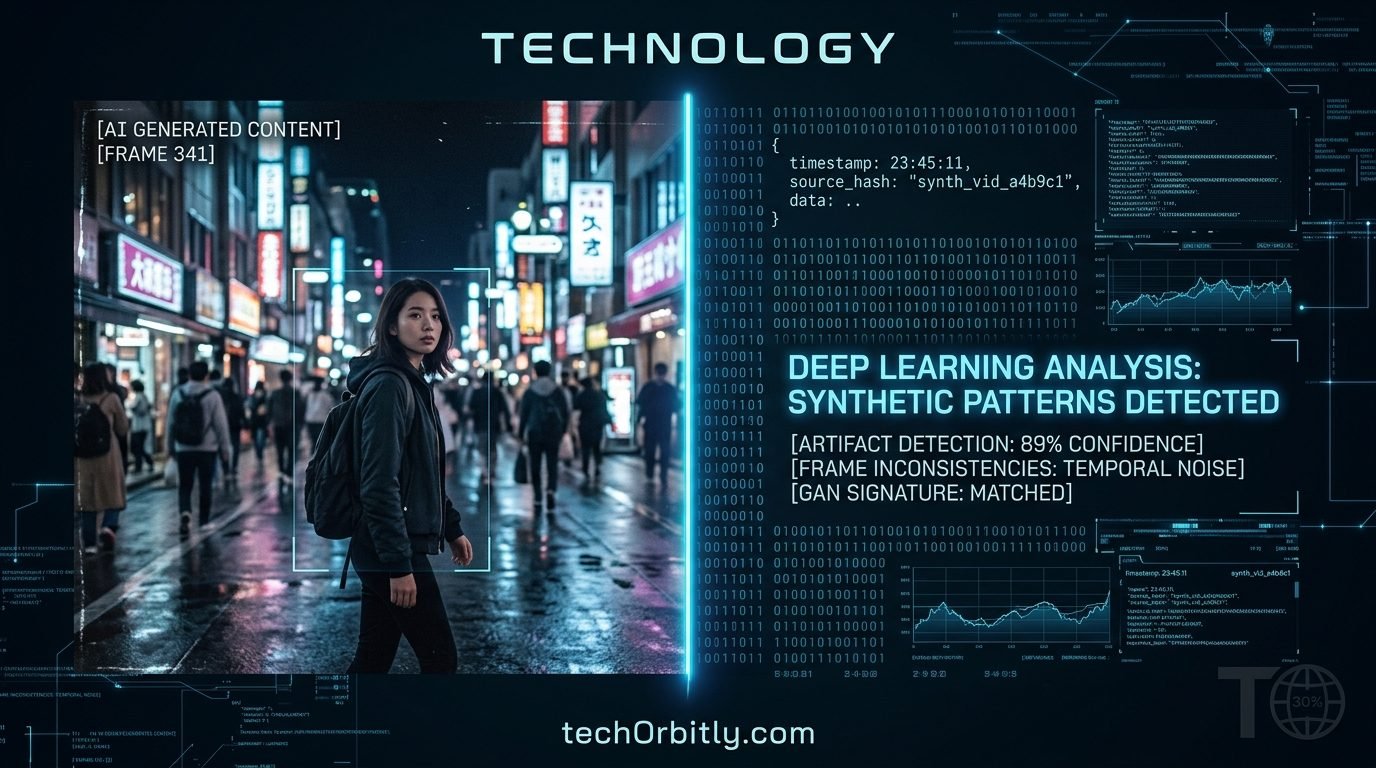
Most AI-generated video carries a watermark. Almost none of it carries one you can see.
That gap is the whole subject. Two of the best-known generators both mark their output — but one uses an invisible signal buried in the pixels, and the other embeds a metadata record inside the file while treating the visible logo as optional. So the question does this video have a watermark has a useful answer only if you know what kind to look for, and where.
This page covers what Sora and Veo actually leave in a file, how to check for it yourself with free tools, and — for the large amount of video that has neither — the visual signs that are worth your attention and the ones that are not.
Does Sora have a watermark?
Yes, in two forms, and the distinction between them matters more than the answer.
OpenAI's own description is worth quoting rather than paraphrasing. Every video generated with Sora "includes both visible and invisible provenance signals." All Sora videos "embed C2PA metadata — an industry-standard signature". And, separately: "many outputs also carry visible, dynamically moving watermarks which include the name of the creator."
Read those together and the shape is clear. The metadata is universal — every Sora video has it. The visible mark is not — many outputs have it, which means some do not.
That wording changed over time, and the change is the most useful fact on this page. When Sora 2 launched in September 2025, OpenAI's language was that "at launch, all outputs carry a visible watermark." By March 2026 that had become "many outputs". The visible logo went from mandatory to optional. The embedded metadata never did.
Sora is no longer available. OpenAI's pages now carry a notice that the product was discontinued on 26 April 2026. The videos it produced are still circulating, and everything above still applies to them — a Sora video made in 2025 still carries its C2PA record unless something has since stripped it out.
What the visible Sora watermark was
OpenAI describes it as a "dynamically moving" watermark that includes "the name of the creator." That is the extent of what their documentation specifies, so it is the extent of what this page will claim. The practical point is simpler than the design: if you can see a moving mark with a name in it, you have your answer. If you cannot, you have not learned anything yet.
Why a Sora video with no logo is still a Sora video
Because the logo was optional and the metadata was not. A clean-looking Sora clip with no visible mark still carries its C2PA record unless something has stripped it out — and checking for that record takes about thirty seconds, which is the next section but one.
OpenAI also describes maintaining "internal reverse-image and audio search tools that can trace videos back to Sora with high accuracy". Those are described as internal. They are not something you can run.
Google Veo and SynthID: the watermark you cannot see
Google's approach is the opposite of a logo. Its developer documentation states it plainly: "Videos created by Veo are watermarked using SynthID, our tool for watermarking and identifying AI-generated content."
SynthID is invisible by design. According to Google DeepMind, it "adds an invisible digital watermark to an AI-generated image (or video segment)" without changing the video's quality, and it is "designed to stand up to modifications like cropping, adding filters, changing frame rates, or lossy compression." So unlike a visible logo, it is not removed by trimming the corner off, and unlike file metadata, it is not lost when the video is re-encoded — it lives in the pixels themselves.
The consequence is that you cannot find it by looking. There is nothing to see.
How to check a video for SynthID
Google offers two routes, and both go through Google's own tools. You can upload the clip to Gemini and, in DeepMind's words, "ask if it's been created or altered by Google AI." Or you can use the SynthID Detector, which DeepMind describes as "a verification portal, to verify if a piece of content was watermarked with SynthID."
The limit is built into the design: SynthID answers the question was this made with Google's AI. A video from any other generator will come back clean, and that tells you nothing about whether it is real.
Do AI videos have metadata? C2PA and Content Credentials
C2PA is the standard OpenAI is referring to when it says every Sora video embeds "an industry-standard signature". Content Credentials is the name you will see on it in the tools that read it. It is a record embedded inside the file, and the free inspection tool describes its purpose as letting you "inspect its Content Credentials in detail and see how it has changed over time."
Two things follow. First, a video with Content Credentials can tell you where it came from without you having to guess. Second, a video without them cannot tell you anything at all — and that is not the same as being real.
How to check: drag the file into Verify
The Content Authenticity Initiative runs a free checker at verify.contentauthenticity.org. There is nothing to install. You drag a file onto the page, or pick one from your device, and it reads whatever credentials the file carries.
It accepts video directly. The supported formats listed on the page are: AVI, AVIF, DNG, HEIC, HEIF, JPEG, M4A, MOV, MP3, MP4, PDF, PNG, SVG, TIFF, WAV and WebP — so an MP4 or MOV goes straight in.
If the file carries a record, you will see it, including how the content has changed over time. If it does not, the tool will tell you it found no information to view.
When the metadata is missing, and why that proves nothing
The tool's own page says it: "Content Credentials are still rolling out, so the content you choose to inspect may not have information to view." An empty result is the common case, not the suspicious one.
There are also ordinary reasons a record goes missing that have nothing to do with anyone hiding anything. A screen recording is a new file created by your device, and nothing from the original file's metadata travels into it. Any tool that re-encodes a video without carrying its metadata across produces a file with none. So no credentials is consistent with a real video, an AI video that was screen-recorded, and an AI video that was re-saved by a tool that dropped the record. It rules nothing in and nothing out.
Which is why, when the metadata is missing, you are back to looking at the picture.
Other signs a video is AI-generated
Everything above is definitive when it is present: a Content Credentials record or a SynthID hit is an answer. Everything below is not. These are patterns that AI video tends to produce, and none of them proves anything on its own — real footage has odd moments too. Treat them as evidence to accumulate. One tell is nothing. Three together, in a video with no metadata and no visible mark, is a strong signal.
The single most useful technique for all of them: pause the video and step through it frame by frame. Nearly every tell below is easy to miss at speed and obvious when the picture is still.
Morphing: things that slowly become other things
Watch a held object, a face, or a hand across a few seconds of footage. In AI video it will often drift — a face becomes a slightly different face, a cup changes shape, fingers merge into each other and separate again. The generator is producing every frame afresh and has no fixed idea of what the object is, only of what the surrounding pixels looked like a moment ago. Real objects are stubbornly the same object from one frame to the next.
Flicker and temporal inconsistency
Fine detail that pops in and out between frames: individual strands of hair, freckles, the pattern on a shirt, the texture of a wall. Lighting that shifts with no cause. Step through it and compare consecutive frames — real footage is boringly consistent, and AI footage often is not.
Background warping
Look at the straight lines behind the subject — door frames, tiles, window edges, the join between wall and floor. When the camera or the subject moves, those lines should stay straight. In AI video they frequently bend, breathe, or slide, because the model is redrawing the geometry rather than filming it.
Hands, fingers and touch
Still one of the most reliable tells in moving footage even as still images have largely fixed it. Count fingers. Watch what happens when a hand grips something, passes behind something, or touches another hand: extra fingers, missing ones, a hand that passes through the object it is supposedly holding, a grip that closes on nothing.
Garbled text and signage
Any text in the frame — a shop sign, a label, a screen, a caption on a poster — is worth pausing on. In AI video it often renders as letter-shaped noise: plausible from a distance, unreadable up close, and frequently different from one frame to the next. Text is among the hardest things for a video model to hold steady.
Physics that is almost right
Shadows that fall the wrong way for the visible light. Reflections in glass or water that do not match the scene above them. Liquid that pours, splashes or settles wrongly. Cloth and hair that do not react when the person moves. Objects that pass through each other. Each of these is the model producing something that looks like physics without computing any.
Object permanence
Watch what happens when something is briefly hidden — a glass on a table as someone walks in front of it, a person behind a passing car. In real footage it is still there afterward, unchanged. In AI video it is often gone, moved, or subtly different, because the model did not know it was there while it could not see it.
Floaty, weightless motion
People who walk without any sense of weight, gliding rather than stepping. Camera moves that are too smooth. Movement that is fluid in a way that real bodies and real hand-held cameras are not. Hard to name, easy to feel once you are looking for it.
Lip sync and the audio track
If someone is speaking, watch the mouth. Mouth shapes that do not match the sounds, teeth that appear and vanish between frames, and speech that is fractionally out of step with the lips are all worth noting. Listen as well as watch: unnaturally even delivery, breaths in odd places, and a total absence of room tone — the faint background sound that every real recording has — are audio-side signs.
Length and cuts
If the video is more than a few seconds long, look at how it is put together. A common pattern in AI-generated pieces is a series of short clips joined with frequent cuts, where the subject, the lighting or the setting is subtly different after each one — the same person with a slightly different face, the same room with a different window. Real footage cut that often usually has a reason for each cut.
The situations where this comes up
The same checks apply everywhere, but a few contexts recur.
Product review videos
Reviews are a natural target because they are cheap to produce and the incentive is obvious. Check hands and the product: whether the reviewer's grip on the item is physically right, whether the product's text and logos hold steady, whether the object stays the same object between cuts.
Disaster and breaking-news footage
Footage of a fire, a flood or a collapse spreads fastest when it is fresh, which is exactly when it is least likely to have been checked. Physics and permanence are the tells to lean on here: water, smoke and debris that behave wrongly, and buildings or vehicles that change between frames.
Animal videos: real or fake?
Animals doing improbable things are among the most-shared AI videos. Fur is the equivalent of hair — watch for strands that flicker — and look at the feet, the eyes, and any moment the animal touches something.
Videos on Facebook
Video that arrives through a feed has usually been through at least one re-save, so the metadata check is less likely to help and the visual tells carry more weight. Where a clip claims a source, that source is worth finding.
Do AI video detectors actually work?
Partly, and only for specific questions.
Google's SynthID check answers exactly one thing — whether the video was made with Google's tools — and answers it well. Content Credentials answer where a file came from if, and only if, a record was written and has survived. Neither tells you a video is real; both can only tell you it is AI, and only when the signal is there to find.
Anything that claims to look at an unlabelled video and return a verdict is doing something different: estimating a probability from the picture. That is the same thing the visual tells above do, done by a model instead of a person, and it comes with the same limits. It can be wrong in both directions, and a confident-sounding percentage is still a guess.
So the honest order is the one this page has followed. Check for a visible mark. Check the metadata. Ask Google's tools if it might be Google's. And only then read the picture — slowly, frame by frame, counting the tells rather than trusting any one of them. That order puts the definitive checks first and the guesswork last, which is the only sensible way round.
If you are checking a still image rather than a video, the picture-reading side is covered in more depth in how to spot AI-generated images — several of the same tells apply, and reverse image search, which has no video equivalent, is available there.


0 comments
No comments yet. Be the first to weigh in.